
Ever wonder how travel bloggers get those jaw-dropping photos that stop you mid-scroll? It's not just about the destination or a fancy camera – it's the magic of mobile editing! I'm sharing the game-changing apps that literally transformed my travel photography and will do the same for yours, turning your phone into a powerful editing studio. --- ##
From Tourist Snaps to Tripsora-Worthy Shots: My Photo Editing Revelation
Let’s be honest. We’ve all been there. You’re standing in front of an iconic landmark – maybe the majestic Eiffel Tower, the vibrant markets of Marrakech, or the serene beaches of Bali. You snap a photo, filled with the joy of the moment, only to look at it later and think, "Is that really what I saw?" The colors are flat, the lighting is off, and that magical atmosphere you experienced just… isn't there.
For years, my travel photos suffered from this exact fate. They were enthusiastic, yes, but far from inspiring. I’d return from incredible adventures with a camera roll full of memories that felt muted, a pale imitation of the vivid experiences I'd lived. I envied the travel bloggers whose feeds were a kaleidoscope of perfectly captured moments, each photo a work of art. I thought it was expensive gear, years of photography school, or perhaps just sheer luck.
Then, everything changed. On a rainy afternoon in a tiny Parisian café, scrolling through countless travel guides, I stumbled upon a simple article about mobile photo editing. It was a lightbulb moment. What if I could take those raw, imperfect snapshots and infuse them with the life, color, and emotion I remembered?
What followed was a deep dive into the world of smartphone photo editing apps. And let me tell you, it wasn't just a discovery; it was a revelation that changed my travel photography forever. These apps transformed my dull, "meh" travel pics into vibrant, share-worthy masterpieces, turning my phone into a portable editing studio. They allowed me to tell my travel stories with the visual impact they deserved.
Today, I’m pulling back the curtain and sharing the five indispensable photo editing apps that have become my secret weapons. These aren't just tools; they're creative partners that empower me to bring the magic of my journeys to life, right from my phone. Get ready to elevate your travel photography game – no expensive camera required!
1. The Non-Negotiable Powerhouse: Adobe Lightroom Mobile (Free with Premium Features)
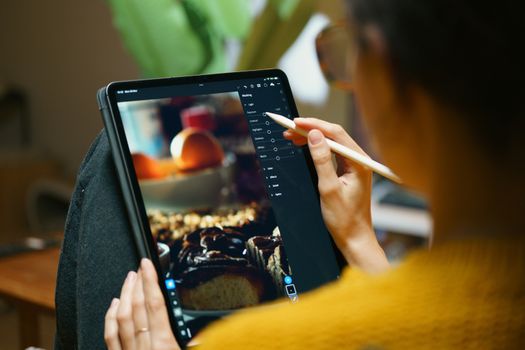
If there's one app that truly revolutionized my approach to travel photography, it's Adobe Lightroom Mobile. Think of it as having a professional darkroom in your pocket. Before Lightroom, I was dabbling with basic filters. After Lightroom, I understood control.
My personal "aha!" moment with Lightroom happened on a trip to Marrakech. I had captured dozens of vibrant shots of the Djemaa el-Fna square – the snake charmers, the spice stalls, the rich textiles. But when I looked at them on my phone, the colors felt muted, the shadows too deep. I imported them into Lightroom, and with a few intuitive slider adjustments – boosting the saturation of the reds and oranges, lifting the shadows, and refining the clarity – those photos sang. The spices looked more aromatic, the textiles more luxurious, and the energy of the square practically pulsed from the screen. It was the first time my photos truly matched my memories.
Why I Love It:
- Professional-Grade Tools: From exposure and contrast to whites, blacks, highlights, and shadows, Lightroom gives you granular control over every aspect of your image.
- HSL Panel: This is a game-changer for color correction. You can individually adjust the Hue, Saturation, and Luminance of specific colors. Want to make the blues of the Aegean Sea pop without affecting skin tones? HSL is your best friend.
- Selective Adjustments (Premium): With masking tools, you can apply edits to specific parts of your photo – brighten a face, darken a sky, or sharpen a particular detail – without affecting the rest of the image. This is incredibly powerful.
- Presets: Create your own signature look or use countless free and paid presets available online. Once you've perfected an edit, save it as a preset to apply to future photos for a consistent feed.
Practical Tips for Travelers:
- Shoot in DNG/RAW: If your phone supports it (many newer models do), shoot in DNG format directly from the Lightroom camera. This captures more image data, giving you much more flexibility in editing.
- Start with Global Adjustments: Begin by correcting exposure, contrast, and white balance. Get the overall light and feel right first.
- Master the HSL Panel: Seriously, spend time here. It allows you to fine-tune colors like a pro. Make those turquoise waters in the Maldives truly sparkle, or deepen the greens of a Costa Rican rainforest.
- Use the Healing Brush: Great for quickly removing small dust spots or minor distractions.
- Sync Across Devices (Premium): If you have a Creative Cloud subscription, your edits and photos sync across your phone, tablet, and desktop, making your workflow seamless.
Price: Free for powerful core features. Premium features (like selective adjustments, cloud storage, and advanced healing) are available with an Adobe Creative Cloud Photography Plan (starting around $9.99/month), which often includes the desktop version of Lightroom Classic and Photoshop. For serious travel photographers, it’s an investment worth every penny.
2. The Free Precision Master: Snapseed (Free)
If Lightroom is my primary canvas, Snapseed is my go-to for surgical precision and rescuing tricky shots. Developed by Google, this app is incredibly robust, completely free, and surprisingly intuitive once you get the hang of it.
I remember distinctly being in Iceland, chasing the Northern Lights. My phone struggled with the low light, and while I captured the faintest green streaks, the foreground was almost entirely black. Desperate, I turned to Snapseed. Using its "Selective" tool, I was able to carefully brighten just the snowy landscape in the foreground without blowing out the delicate aurora above. Then, with the "Healing" brush, I removed a few stray specks of rain on my lens. The final image wasn't perfect, but it was a vast improvement, capturing the magic of that freezing night in a way I thought impossible for a phone photo.
Why I Love It:
- Selective Tool: This is Snapseed’s superpower. You can place "control points" on specific areas of your photo and adjust brightness, contrast, and saturation only in that localized spot. Perfect for brightening a face, making a flower pop, or darkening a distracting background.
- Healing Brush: Effortlessly remove unwanted objects, blemishes, or distractions from your photos. That rogue tourist photobombing your perfect shot of the Colosseum? Snapseed can often make them disappear.
- Perspective Tool: Easily correct distorted perspectives (think leaning buildings from wide-angle shots) or straighten a crooked horizon line with a simple swipe. This is a lifesaver for architectural photography.
- Dozens of Tools: From "Tune Image" (basic adjustments) to "Details" (sharpening), "Crop," "Rotate," "White Balance," and more, Snapseed has a comprehensive suite of editing options.
- Non-Destructive Editing: You can always go back to previous steps in your edit history, allowing you to experiment freely.
Practical Tips for Travelers:
- Master the Selective Tool: This is where Snapseed shines. Use it to draw attention to your subject, balance uneven lighting, or fix problematic areas without affecting the entire image.
- Don’t Underestimate Healing: For those moments when someone walks into your shot or there’s an unsightly trash can, the healing tool can be incredibly effective. Zoom in for better precision!
- Use for Quick Fixes: If you just need to straighten a horizon or remove a small distraction, Snapseed is faster than opening Lightroom for minor tweaks.
- Experiment with "Stack Edits": You can layer multiple edits and go back to adjust each one individually, giving you immense flexibility.
Price: Completely FREE! No hidden costs, no premium subscriptions. An absolute must-have for any mobile photographer.
3. For That Aesthetic Vibe: VSCO (Free with Paid VSCO X)
If you're aiming for a cohesive, aesthetically pleasing Instagram feed with a distinct mood, then VSCO is your artistic partner. While Lightroom provides surgical precision, VSCO offers a curated collection of beautiful, film-inspired filters that can instantly transform the feel of your photos.
My journey with VSCO began when I was trying to develop a consistent visual style for my travel blog. I wanted a slightly muted, film-like aesthetic for my photos from Berlin – gritty street art, historical landmarks, and cozy cafes. I experimented with VSCO's extensive filter library and found a few presets (like A6 and C1) that perfectly captured the mood I was going for. Suddenly, all my Berlin photos, despite being taken in different lighting conditions, had a harmonious, artistic quality. It made my feed feel less like a random collection of snaps and more like a carefully curated visual story.
Why I Love It:
- Stunning Filters (Presets): VSCO is renowned for its high-quality, film-emulation filters that go beyond basic Instagram filters. They offer a sophisticated, artistic touch.
- Fine-Tuning Controls: Beyond just applying a filter, you can adjust its intensity, and then dive into detailed adjustments like exposure, contrast, saturation, grain, fade, and split tone.
- Recipe Saving: Once you've found a combination of edits and filters you love, you can save it as a "Recipe" to quickly apply to future photos, ensuring consistency across your feed.
- Community & Inspiration: VSCO has its own vibrant community where you can discover and share photos, find inspiration, and learn from other creators.
Practical Tips for Travelers:
- Find Your Signature Filter(s): Don't just pick one; explore the library and find filters that resonate with your travel style. Do you prefer warm, golden tones for beach destinations, or cool, desaturated hues for urban exploration?
- Adjust Filter Strength: A little goes a long way. Don't be afraid to dial back the intensity of a filter to make it more subtle and natural.
- Experiment with Grain and Fade: These tools can add a beautiful, vintage, film-like quality to your photos, enhancing the aesthetic.
- Use for Cohesion: If you’re planning an Instagram grid, VSCO is excellent for ensuring all your photos have a similar look and feel, even if they were taken in different places.
Price: Free for a basic set of filters and editing tools. The VSCO X membership (around $29.99/year or $7.99/month) unlocks their full library of over 200 presets and advanced editing features.
4. The Magic Eraser for Perfect Shots: TouchRetouch (Paid One-Time)
Ever taken an otherwise perfect photo, only to have it ruined by a stray power line, an unsightly trash can, or a random person walking into your frame? TouchRetouch is the solution to these frustrating photo blemishes. It’s a specialized app designed for one thing, and it does it exceptionally well: object removal.
I was in Paris, trying to capture that iconic shot of the Eiffel Tower from Trocadéro. It was a beautiful golden hour, but the place was swarming with tourists. I managed to get a decent shot, but a few people were lingering right in the foreground. I opened TouchRetouch, used the "Object Removal" tool, painted over the unwanted individuals, and poof – they were gone! The app intelligently filled in the background, making it look like they were never there. It felt like magic. I also used it to remove some distracting power lines from a stunning sunset photo in Santorini, truly transforming the view.
Why I Love It:
- Simple & Effective Object Removal: Its primary function is to remove unwanted elements, and it does it with remarkable accuracy and ease.
- Line Removal: Perfect for getting rid of power lines, telephone wires, or other thin, linear distractions that can clutter a beautiful landscape.
- Spot Removal: Quick fixes for small blemishes, dust spots, or minor imperfections.
- Clone Stamp: For more complex removal tasks, you can manually "clone" parts of your image to cover up unwanted areas.
Practical Tips for Travelers:
- Be Patient: For complex removals, zoom in closely and paint over small sections at a time. Sometimes, several passes yield better results than one broad stroke.
- Don't Overdo It: While powerful, it's not a miracle worker for large, complex objects against intricate backgrounds. Use it for reasonable tasks to maintain realism.
- Think About Composition First: While TouchRetouch can fix many issues, try to compose your shot to minimize distractions from the start. But when you can't, this app is a lifesaver!
- Use on High-Resolution Images: The app works best when it has plenty of data to intelligently fill in the removed areas.
Price: A one-time purchase of around $1.99 - $2.99, depending on your app store. An absolute steal for the frustration it saves!
5. Beyond the Basics: Creative Flair with PicsArt (Free with Premium Features)
Sometimes, you want to go beyond simple corrections and add a touch of artistic flair or create unique visual stories. That's where PicsArt comes in. While Lightroom and Snapseed are about refining your photos, PicsArt is about reimagining them.
I was exploring the Wadi Rum desert in Jordan, and the night sky was absolutely breathtaking. My phone captured the stars, but I wanted to emphasize the vastness and wonder. Using PicsArt, I experimented with blending modes and added a subtle "starry night" overlay to enhance the existing stars, giving the photo a dreamlike quality. Another time, I used its collage maker to combine a few favorite shots from a trip to Thailand into a single, dynamic image for a social media post, adding text and fun stickers to tell a mini-story. PicsArt turns photo editing into playful art.
Why I Love It:
- Collage Maker: Create stunning photo collages with various layouts, backgrounds, and borders. Perfect for showcasing multiple moments from a single experience.
- Stickers & Text: Add playful stickers, emojis, or stylish text overlays to your photos for a personalized touch or to convey a message.
- Drawing & Brushes: Unleash your inner artist with drawing tools, brushes, and effects to add unique elements or highlight details.
- Double Exposure & Blending Modes: Combine two photos to create surreal double exposure effects or blend textures for artistic results.
- Extensive Effects & Filters: A vast library of filters, artistic effects (like sketch, watercolor, cartoon), and magic effects to transform your photos.
- Background Eraser & Changer: Easily remove the background from a photo and replace it with something entirely different.
Practical Tips for Travelers:
- Don't Overdo It: While tempting to use all the bells and whistles, use creative elements sparingly and purposefully to enhance, not overwhelm, your photo.
- Create Storytelling Collages: Combine a close-up of local food, a landscape shot, and a selfie to tell a mini-story about a day's adventure.
- Add Subtle Overlays: Experiment with light leaks, textures, or bokeh overlays to add depth and atmosphere to your photos.
- Design Social Media Graphics: Use PicsArt to add text and branding to your travel photos for engaging Instagram stories or Pinterest pins.
- Experiment with Backgrounds: If you have a clear subject, try changing the background for a fun, creative twist or to remove a busy scene.
Price: Free for many features, with in-app purchases and a PicsArt Gold subscription (starting around $4.66/month, billed annually) for premium tools, filters, and ad-free experience.
My Workflow & Pro Tips for Next-Level Travel Photos
Now that you know my top apps, here's a peek into my general workflow and some golden nuggets of advice to truly elevate your travel photography:
- Shoot Smart, Edit Smarter: Always try to get the best possible shot in-camera first. Good lighting, a strong composition, and a clear subject will make editing infinitely easier. Shoot in RAW/DNG if your phone allows.
- Import to Lightroom First: My default is to import all new travel photos into Lightroom Mobile. This is where I do my initial, global adjustments:
- Crop & Straighten: Get the composition perfect and horizons level.
- White Balance: Ensure colors are accurate (e.g., no orange tint from artificial light).
- Exposure & Contrast: Adjust overall brightness and dynamic range.
- Highlights & Shadows: Recover detail in bright skies and dark foregrounds.
- Vibrance & Saturation: Boost colors subtly (vibrance is generally better as it targets less saturated colors).
- Refine with Snapseed: If a photo needs specific local adjustments (like brightening a face without affecting the background) or healing minor distractions, I'll export it from Lightroom and open it in Snapseed. I make those precise edits, then save it back to my camera roll.
- Add Aesthetic with VSCO: For photos I want to post on my social media or blog, I'll then take them into VSCO to apply my signature filter or experiment with a specific mood. This ensures a consistent look across my feed.
- Clean Up with TouchRetouch: If there are any unwanted elements (people, power lines, trash), this is the stage where I use TouchRetouch to make them disappear.
- Creative Touches with PicsArt: For special projects, collages, or unique artistic effects, PicsArt is my final stop.
- Export & Share: Always export at the highest quality possible.
More Pro Tips:
- Consistency is Key: Develop a personal editing style. This will make your travel photos instantly recognizable and create a cohesive visual narrative across your platforms.
- Don't Over-Edit: The goal is to enhance, not to create something completely artificial. Aim for a natural, polished look that reflects the beauty you saw.
- Practice, Practice, Practice: The more you use these apps, the more intuitive they become. Experiment with different tools and settings.
- Look for Light: Good light is the foundation of any great photo. Golden hour (sunrise/sunset) is your best friend.
- Backup Your Photos: Always back up your original and edited photos to cloud storage (Google Photos, Dropbox, iCloud) or an external hard drive. Losing precious travel memories is heartbreaking!
- Tell a Story: Every photo should tell a part of your travel story. Think about the emotion, the details, and the narrative you want to convey.
Your Travel Photos, Transformed
These photo editing apps aren't just tools; they're enablers. They've allowed me to transcend the limitations of my smartphone camera and truly capture the essence of my travel experiences. They’ve transformed my travel pics from forgotten files to cherished memories, ready to inspire and share.
No longer do I look at my photos and feel a disconnect. Instead, I see the vivid blues of the Mediterranean from my yacht trip in Croatia, the fiery sunsets over the Grand Canyon, and the bustling energy of Tokyo's Shibuya Crossing – all brought to life through a few taps and swipes on my phone.
So, if you’re ready to stop just taking pictures and start creating stunning visual stories, dive into these apps. They truly changed my life forever by giving me the power to share my world, beautifully.
What are your go-to photo editing apps for travel? Do you have any secret tips or favorite filters? Share your insights and transformed photos with us! Tag @Tripsora and use #TripsoraTransforms on Instagram – we can’t wait to see your magic!
---
More pictures
Tags
Share this guide
We may earn a commission if you click a link and buy a product or service, at no extra cost to you. How affiliate links work.
Been there?